Free trial.
Welcome! Let's start our journey with a tutorial showing the main features of Lightjams, from patching to the creation of a pixel mapping project.
(NEW!) In the following tutorial, we'll see how to create a 80x12 LED wall and map videos on it. The integrated media server in Lightjams can handle up to 64 media files, including videos and still images. The idea is to use your videos and images as grid's backgrounds.
Coming next, a tutorial showing how to sequence your lighting effects and activate them one at a time using a timer or a MIDI keyboard. In this case we'll sequence 3 scenes using 16 moving heads. This is very similar to a cuelist, where the GO button could be linked to any external input. Download the project file.
A source emits energy. Think about it as a radio emitter. You can use as many as you want and configure them in countless ways to achieve the effects you have in mind. On the receiving end, fixture attributes (dimmer, RGB, pan, tilt...) catch the source's energy and relay it to your real fixtures.
Grids are your playground, your canvas. Follow your creative flow and use them as you please. Their job is simply to hold the sources and attributes. You can create an unlimited number of grids and put them together to build a logical hierarchy using groups. Groups and grids can represent a simple effect, a scene, a cuelist, a reusable building block... You are the one giving the meaning.
This is the second level in Lightjams. At first you don't see any formula - you just click the shiny buttons. Then a time will come when you'll want to customize your experience more and more. At this moment, you'll discover that under every slider hides a math formula waiting to be edited. Don't be afraid. The formula's syntax is pretty simple and if you've used any spreadsheet app like Excel, you already know the drill.
In Lightjams, great effects are created using clever spacial positionning of sources and attributes with some math formula spices.
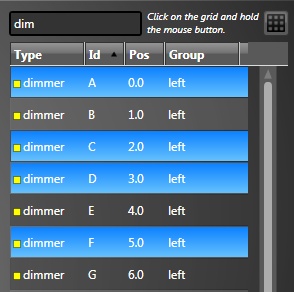
The most important thing to know is that you can select multiple attributes in the list - if you're used to standard Windows list control then you already know how to do it. You have to use a combination of keyboard keys and mouse click:
CTRL-A: Select all attributes
CTRL and click an attribute: Add this attribute to the selection or remove it if already there.
SHIFT and click an attribute: Select all attributes from the last selected to this one.
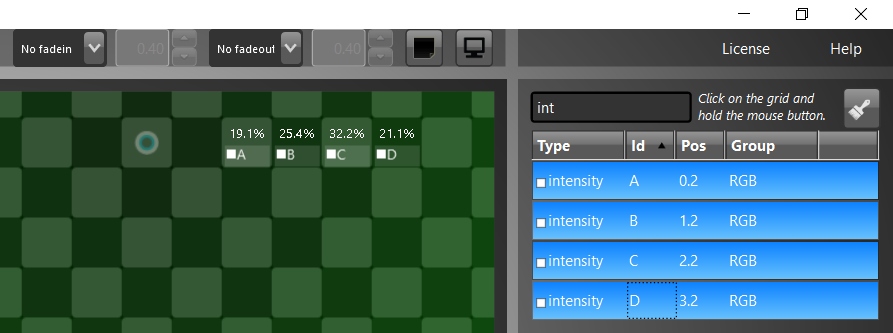
As the fastest way to select attributes is using the CTRL-A shortcut, it is a good idea to first narrow down the list by typing some keywords in the search box. For example, if you want to select all intensity attributes, instead of selecting attributes one by one, you can type "intensity" (only "int" should do) in the search box and then click the first attribute and press CTRL-A. For more complex selections, you'll come to like giving your fixtures a group name so that you can select them really fast.
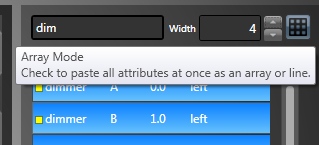
Once your selection done, there are two ways to add all attributes on the grid:
"Painting" mode: Click on the grid and hold the mouse button while you move the mouse around. If you want to keep "painting" even after all attributes have been added, you can hold the CTRL key.
Array mode: When multiple attributes are selected, you can click the array mode button. Then you specify the with of your array and just click on the grid where you want the array to begin. If you hold the CTRL key at the same time, attributes will fill all available space from the (0,0) cell up to the clicked cell.
Modifying Attributes' order: Want to reverse the order of your attributes to do a special effect? Select your attributes on the grid and go in the Edit/Attributes menu. You can flip the attributes horizontally, vertically and even randomize the order.
CTRL+Q: Keyboard shortcut to toggle between source and attribute edition mode. Since you can put a source and an attribute in the same cell, you have to be in the proper mode to select the item you want.
CTRL+Number: Keyboard shortcut to quickly switch between grids. CTRL+1 selects the first grid.
You can select multiple items on the grid by clicking on an empty cell and holding the mouse button while you move the mouse. This creates a selection rectangle. Once the selection's done, you can remove items by clicking on them while holding the CTRL key.
You can move all selected items at once by clicking on a selected item and dragging it.
You can copy/paste the selected items. Mostly useful to create multiple identical sources.
Whatever your fixture color mixing capability is (RGB, RGBW, CMY...), you always end up working with hue, saturation and intensity attributes in Lightjams. This representation is more handy to create lighting effects. In order to see some light, you have to put the intensity attributes on the grid and send them power. Otherwise, the default intensity value is 0%. Note that 50% is full color and 100% is pure white (really intense light) .
If your fixture has a dedicated dimmer channel, then the default intensity value is 50% and the dimmer is 0%, meaning you have in this case to add the dimmer attributes on the grid to see something.
Here are a few sample projects to show you how to achieve various effects. Each projects have multiple grids representing one effect each. When opening a project, only one effect will be activated. To activate the other effects, go in the View/Grids menu to show all grids and push the activation sliders up.
Press Ctrl-M to see the final result in the monitor. By the way, the monitor just uses the current grid's layout (how the attributes are positioned) and shows in a square the state of the corresponding fixture.
Strobes: Various strobe effects ranging from a simple on and off to ripples strobbing at a varying speed.
Color Chases: Multiple variations of the famous rainbow effects and other ways to smoothly change hues. Using 25 RGB fixtures.
Effect Sequencer (cuelist): Sequence your lighting effects and activate them one at a time using a timer or a MIDI keyboard. In this case we'll sequence 3 scenes using 16 moving heads. The sequencer grid acts as the maestro telling which effect is active. You can modify it to activate the next effect at each music beat or any other event. Press CTRL+G to get an overview of all grids.
Chase: Simple chase activating different fixtures at each step. Select the source and look at its x slider. You can try different shapes and by modifying its formula, you could advance the step at each music beat or wii remote movement etc...
Video Mapping: A 80x12 RGB LED grid with 3 videos activated one at a time by a sequencer. Go in the media manager (Ctrl-U) to select your video files. You can easily add more videos by duplicating one of the existing scenes and linking the grid's backgrounds to your new videos. As a bonus, if you put some good music on, the BeatMachine grid will generate effects based on the music attributes.
LED Grid By Derek Parkins: A 7x7 LED grid showing multiple effects. Some are audio reactive and others have fixed parameters. A sequencer automatically activates the next effect on the music beats.
Color Harmonies: Generate color palettes based on a primary hue: complementary, analogous, triad, rectangle and square. Activate the grid one at a time to see the different palettes.
Color Transitions: Do nice color transitions by changing the hue and saturation at the same time in order to avoid going around the color wheel. Instead, the transition goes through the color wheel, like when using the RGB color model. The added benefit of using the HSL color model though, is that we control the light intensity independently. This sample project also shows how to automatically generate a color palette based on a primary color by shifting the hue component.
Music2Lights - Spectrum: Map the music spectrum to a 20x15 LED array. That's a classic sample to start with. The spectrum uses only one source with the shader mode. For comparison, another spectrum grid is also included using one source per frequency band. Other grids do effects with the starband, the beats and the BPM.
Music2Lights - Fun with music: Various effects with music mixing beat analysis and spectrum display. The default effect changes the color based on the primary music frequency. So high pitched music generates a blue-ish color while music with lots of bass generates reddish color. The project uses your first sound card so you may want to change it and adjust the volume. Go in the View/Configuration menu and then in the music tab.
Music2Lights - Dancing Moving Heads: More advanced music2light effect using 20 moving heads (MAC 101). Put some music on and press Ctrl-M on the layout grid to see the lights crazy dance! If beats aren't properly tracked, be sure to adjust the music volume so you can see the beats when looking at the spectrum (if you don't see it, Lightjams doesn't see it).
Ambient Lighting: Video Colors To Lights. Extract the video dominant colors and use these to paint the lights! This project features 6 modes, from using only one color to up to four. Look at the Video Walkthrough to setup your video input or screen capture.
ArtNET to USB interface Mapper: Map the ArtNET universe 0 to the USB interface. You can easily change the universe or use E1.31 input. In other words, this is a ArtNET to USB interface bridge, where the USB interface can be an Enttec Open/Pro or DMXKing.
OSC to DMX Mapper: Map the whole 512 incoming OSC values to 512 DMX channels. Can output using a USB interface, ArtNET and sACN.
sACN E1.31 + Sequencer: Effects are mixed together and constantly changing with a timer. The sequencer grid selects three effects at the same time: a hue, a primary intensity and a secondary one. Don't forget to press Ctrl-M to see the result!
DMX Triggers: Effects are activated via DMX input (universe 0, address 1 and up). For example, you can use a sequencer software like Vixen or LightoRama (LOR) and send DMX via E1.31 (or ArtNET) to Lightjams. This sample project shows two ways to trigger effects. 1 DMX Channel Per Effect: This allows you to independently control every effect, mix them and even control the fade in/fade out. So if you send 100% (255 in DMX) for channel 1, the effect #1 will be activated. If you send 50%, it will be half activated. If at the same time you send 100% for channel 2, then both effect #1 and effect #2 will be activated. 1 DMX channel to select the active effect: The value you send over DMX determine the active effect. So if you send 0 in DMX value (not percent), the effect #1 will be activated. If you send 1 in DMX value, the effect #2 will be activated, etc... This takes less DMX channels but you can't control the fades and as easily activate multiple effects at the same time.
Inspiration: Abstract effect playing with delays and signal repeating in order to get smooth and ever changing visuals.
* Multiple effects can run at the same time but what makes sense is up to you.
* Since the effect behavior is defined by the sources, you can easily reuse a project by replacing the patched fixtures by your own.
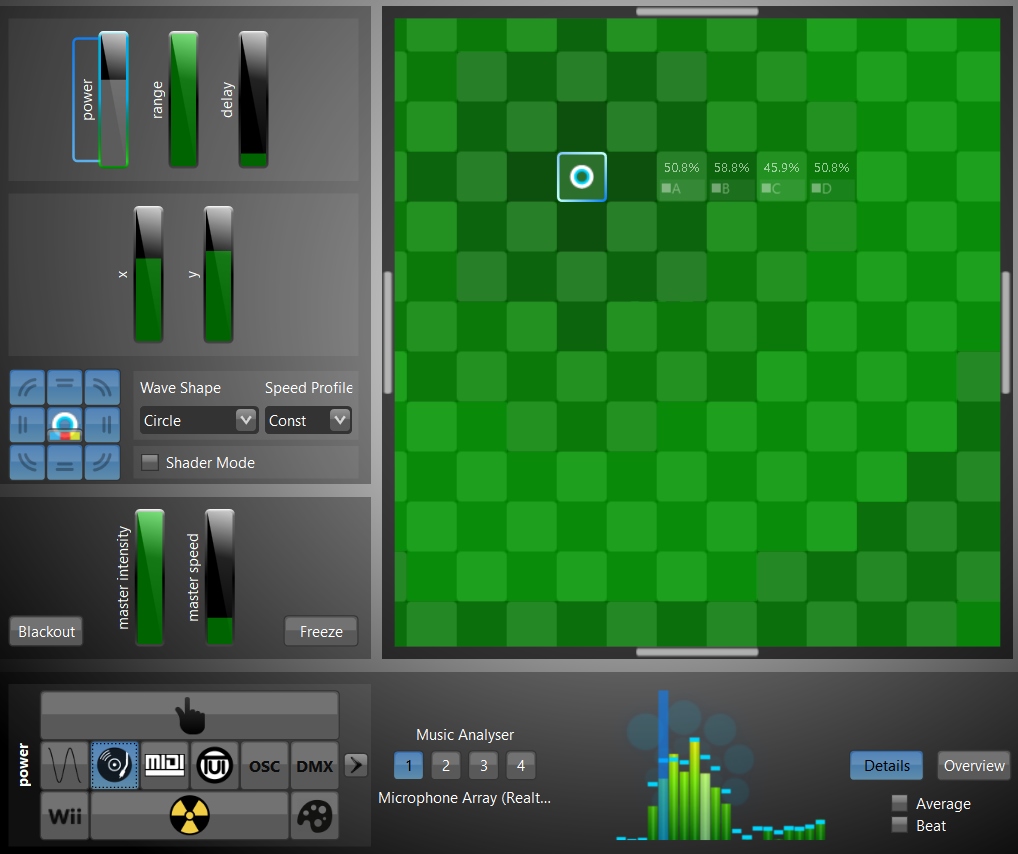
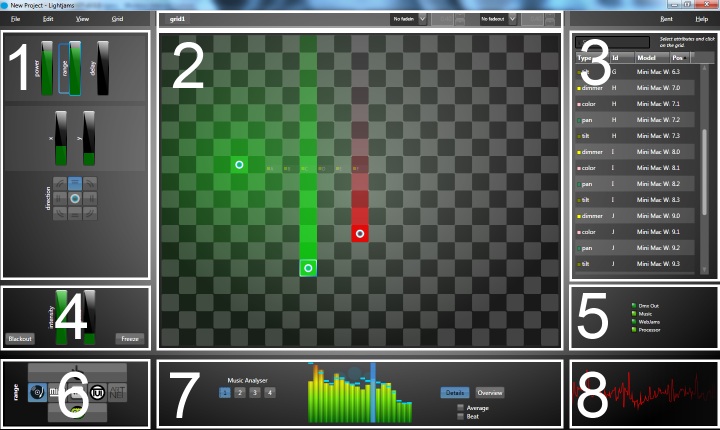
Main Interface

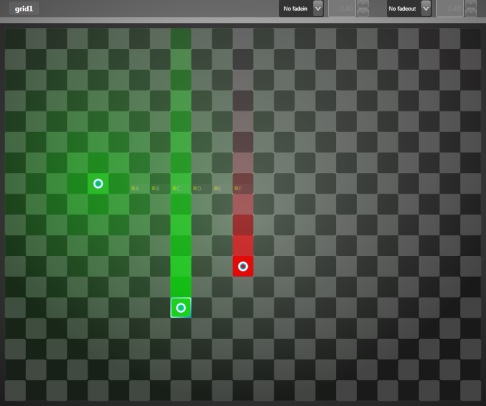
A source emits power propagating like a light wave. This makes creating lighting effects fairly natural. You set:
Since powers are additive, you can use multiple sources to achieve complex effects.
A grid is your playground. Use it as you please. No need to replicate the physical world. You position items to achieve your desired effect.
You can resize the grid up to 400x80. You can move around by using the arrow keys, right-click and drag (like Google maps), click on the scroll buttons or use the minimap (old school Starcraft).
At the top, you have some grid's configuration. First you have it's name which can be changed by clicking the rename menu item under the Grid menu. Then you have the fade in and fade out, applying to all sources on the grid. You can use the fade properties to smooth interactive inputs like wiimote movement and reduce the jitter effect.
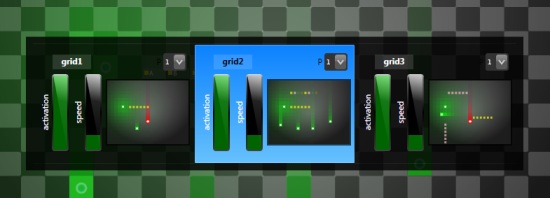
You access more grid settings by going to the View and then the Grid menu item. You'll see an overview (minimaps) of all your grids and the sub-master sliders.
The activation slider modulates all source powers on the grid. If set to 0%, the grid is deactivated.
The speed slider acts as a speed sub-master. The final speed for all time based functions will be the master speed times the grid speed.
There is also a precedence parameter which allows some grids to overwrite lowest precedence grids. For example, if you use a wiimote but want to be able to take over with a midi device. Attribute values from same precedence grids are added, allowing to merge multiple effects running on multiple grids.
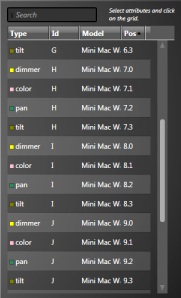
Attributes receive source powers and do the conversion to DMX values. The attribute list shows all attributes of your patched fixtures. Each attribute type has its own color code.
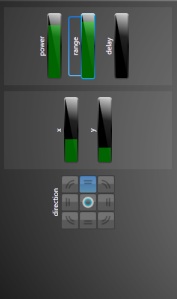
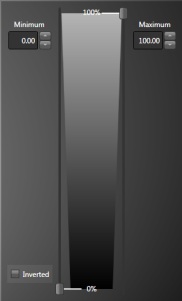
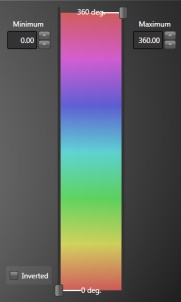
Select attributes on the grid to do some configuration (right image). You can specify the minimum and maximum range used to scaled power percentage. This allows you to restrain DMX output to match the physical constrains of your setup. For example, you can restrain the pan and tilt attributes in order to only wash a specific part of a wall.
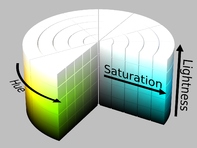
HSL stands for hue, saturation and lightness, also called HSV (V for value). HSL offers a really intuitive color mixing model and is the primary model used in Lightjams to represent colors in RGB and CMY.
When a fixture has color mixing capability, once patched you will see three attributes: hue, saturation and intensity. Lightness has been renamed to intensity to be more in line with the lighting field. Behind the scene, HSL is converted to the actual fixture color model. As you can see from the HSL image at the right, at full intensity all colors are white and at the bottom you have black. With intensity at 50% and saturation at 100%, you get pure colors.
The intensity attribute is modulated by the master intensity.
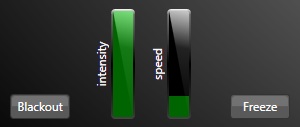
Here you find the master intensity and speed.
The master intensity modulates all dimmer and intensity attributes. The blackout button allows to momentarily set the master intensity to 0%.
The master speed sets the tempo for all time related functions. For example, all shapes generated using the sin, triangle and sawtooth functions are scaled down or up depending on the master speed. Grid's fade times are also modulated by the master speed. The freeze button momentarily set the master speed to 0%.
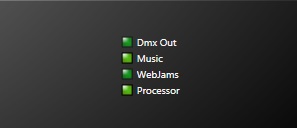
Here you find all important status indicators. Green is good, yellow says something may be wrong and red means bad things are happening (or not happening actually). Mouse hover to see what's going on.
All sliders can be linked to an interactive input. When you select a slider, this is where you choose the input mode.
Usually, you begin by selecting an input mode like a wiimote or music and then you click on the command line icon (the cute monster) to do some customizations. See command line tips for some command line wonders.
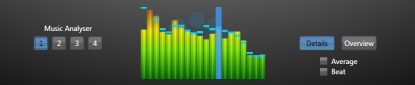
Depending on the interactive input selected, you configure the parameters here.
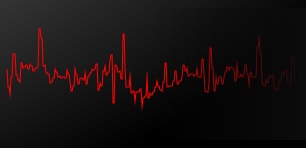
This history graph shows the last few seconds of values. It is very handy to diagnose jittering input and making some quality control.
FAQ
No DMX seems to be outputted. How do I know what's the problem?
First, make sure some fixtures have been patched (see how to patch DMX fixtures). Then you should see a "dmx out" status light. Hover with the mouse to see what's going on. You can try plugging the interface in another USB port.
Which USB to DMX interfaces does Lightjams support?
Enttec DMX USB Pro, Enttec OPEN DMX USB and the DMXKing ultraDMX.
How do I configure my USB interface?
Just plug it! Then wait a couple of seconds and Lightjams should automatically detect it. Some fixtures need to have been patched to the USB universe otherwise Lightjams doesn't need to output anything and will not try to open the USB interface. The "dmx out" status light should turn green.
Will Lightjams automatically reconnect if my usb interface is accidentally disconnected?
Yes! Lightjams will mercilessly try to reopen the usb interface each couple of seconds.
When using my Enttec USB Pro interface, the dmx out led is yellow and saying that it's "skipping frames"?
Lightjams ouputs about 40 frames per second. Your interface is probably configured to output at a slower rate. The good news is that you can change the output rate setting by using the Enttec Pro Utlity.
Can I run Lightjams and Light Jockey on the same computer?
Yes! I've successfully tested it with a Enttec USB Pro interface.
How can I receive DMX from another lighting console not supporting ArtNET or sACN?
You can use the input feature of the DMXKing eDMX1 to take DMX in and send ArtNET to Lightjams.
How can I send MIDI from my Mac to Lightjams running under Windows?
ipMIDI is an app to send MIDI over the network from your Mac and receive it on the same or different computer running Windows.
What's next? Try it for free!
©2013 Lightjams - The DMX Lighting Controller for Live Performances. Proudly made in Montreal, Canada.