Pixel Mapping Videos + Still Images + Effects
Use Your Lighting Fixtures As An Extended Pixel Matrix
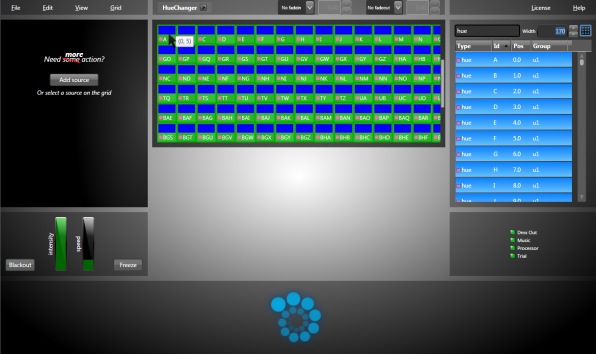
Lightjams allows you to map videos, still images and live effects on your lighting fixtures as if they were part of a large matrix. The most common usage is to display content on a RGB LED wall. You can go further and map any lighting fixture attributes, including dimmer, iris, pan and tilt.
Here's a video of a night club with plenty of LEDs, moving heads and other fixtures. Everything is controlled via Lightjams using live music analysis and MIDI keyboards! This is the work of the very talented Sébastien Atoch from Quadbyte .
An immersive 3D environment by LightRiders in LA. Lightjams controls 45 tubes of 68 LEDs each (over 3000 LEDs). 3D effects are created by cleverly splitting the installation into multiple 2D grids and syning them in multiple ways.
A 6x6 matrix of RGBW fixtures made by Darklight and controlled via Lightjams. You can see how Lightjams makes full use of the white leds and creates very smooth transitions between all colors.
Many thanks to Drew Sewell and Douglas Heriot for this great video of Lightjams in action! Over 24 universes of pixel mapping and a few more universes for moving heads, strobes, lasers... Everything controlled LIVE via multiple midi controllers! Awesome!
GEAR LIST: custom built LED panels with 4050 RGB Pixels, 6 Led stage par cans, 9 Ehrgeiz fusion bars each with 60 ch, 4 blinders, 1 1500w strobe, 4 diode green lasers, 6 Mac250 Movers.
Here's a low resolution pixel mapping project designed by Oliver Kulpsoo. A wall full of parcans with a smooth effect running on it and live control via a Behringer BCF2000.
256 DMX universes
Enough for 43520 RGB LEDs when using all ArtNET and sACN E1.31 outputs. More about ArtNET and sACN. As the led controller taking sACN E1.31 input, you can find many affordable options.
Integrated Media Server
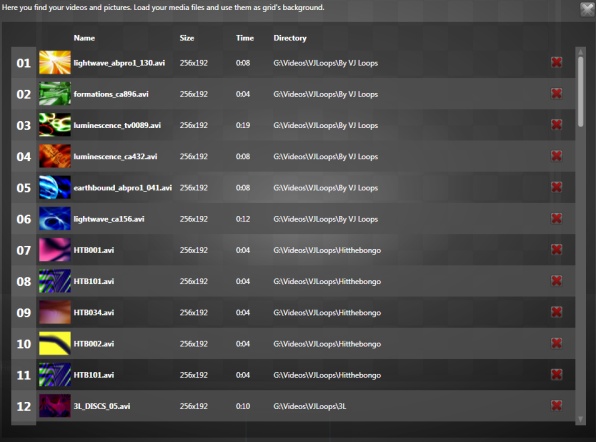
Lightjams acts as both a powerful media server and a lighting controller. Unlike many other pixel mapping solutions requiring multiple complex software, Lightjams is all you need to generate and map the content. Just select your media files from your hard drive and you're ready to go! I'm giving you these video loops to get started. See more info about the media server.
Native Spout Support
Use live videos generated by other apps like Resolume, Ableton Live, Processing, Max/Msp, TouchDesigner, Cinder, OpenFramework, VVVV, Isadora, After Effects, Mapio, Unity3D and more. See Spout for more details.

Native NewTek NDI Support
Receive video over the network and use it for pixel mapping. See NDI for more details.
Extensive Color Format Support
Fully compatible with RGB (all permutations of red, green and blue), RGBW, RGBA, RGBAW/RGBWA and white.
Interactive Triggers
You can use any live inputs, ranging from a MIDI keyboard to an iPad to generate and trigger your effects in realtime. For example: It's really easy to trigger your videos from another lighting console.
Transform Your Content
Easily change color, intensity and saturation. For example: You can make all your videos black and white or you can force them to appear a certain color. This is a great way to ensure some consistency across all your media. The video playback speed is also fully adjustable.
Asymmetric/Irregular Matrix
Tired of perfect rectangle screens? Lightjams lets you create unique mappings with the shapes you want.
Low Res Content
Lightjams embraces the low resolution aesthetic and empowers users to create great content where every pixel counts.