Get It!

Free trial.

Command Line Customize Your Interactive Experience

Here's an overview of the different parts of the command line window. At the top, if you're lucky, you can see funny quotes from famous people. In the center is the text box to type your formula. At the bottom, there's the contextual help for the selected item in the text box. And finally, there is the sync button which is enabled when multiple sources are selected. The sync button lets you reset the time of the selected sources. The index button gives you access to the list of available items you can use in your formula.


The next sections will show you all available functions, variables and operators you can use in your formulas.

Notes: parameters inside brackets [] are optional.

Shapes Time Based Functions

These functions are the building blocks to create your effects. They all work with the master and grid sub-master speeds in a nice way.


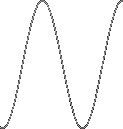
sin(time)
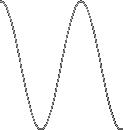
cos(time)
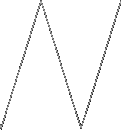
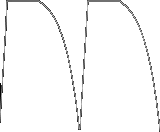
triangle(time)
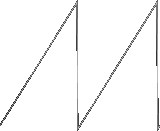
sawtooth(time)
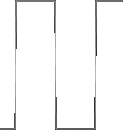
square(time)
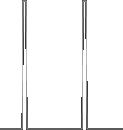
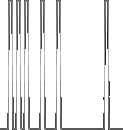
pulse(time, [duration=1 frame])
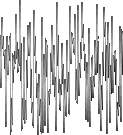
rand([min=0], [max=100])
randsquare(time, probability)
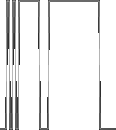
randpulse(time, probability, [duration=1 frame])
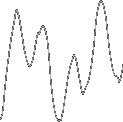
result: All functions return a value between 0% and 100%. This is the standard range in Lightjams.

time: The length of one cycle in seconds. For example, 0.5 means half a second. You can play with the master and grid sub-master speeds to gracefully slow down or speed-up the shape generation.

duration: For the pulse function, this is the length of the pulse in seconds. The default special value of 1 frame means that the pulse will last exactly 1 simulation frame which is about 1/80th second. The 1 frame duration is handy to make sure an event is triggered exactly one time per cycle and no more.

probability: From 0% to 100%. For the randsquare, this is the chance of a state change from active to inactive or the reverse. For randpulse, this is the chance of a pulse to happen.


Note: The cos function is mostly used with the sin function to generate circular shapes. For example, you use the sin function to compute the tilt value and the cos function to compute the pan value.

Examples

rand()

Generate random values between 0% and 100%.

randpulse(2, 80, 0.2)

Generate random pulses. Each 2 seconds, have 80% chance of generating a pulse with a duration of 0.2 second. This function makes great random strobe effects.

avg(sin(2+cos(1)/5),cos(2))

Combine multiple functions to generate more complex waves. This way you can generate shapes with a really long cycle before it repeats.

Conditional Expressions Introduce Intelligent Behaviors

Conditional expressions let you encode your very unique interactive experience logics. For example, you can react to events in an intelligent way and generate different shapes based on the current state of the experience.


if(condition, resultIfTrue, resultIfFalse)

condition: Boolean expression (true or false). True is any values other than 0. False is 0. You can use any logical operators to express complex conditions:

& and

| or

== equal

!= not equal

> greater than

< less than

>= greater or equal

<= less or equal

! not


resultIfTrue: This part is evaluated only if the condition is true (other than 0). This can be a number or another complex formula.

resultIfFalse: This part is evaluated only if the condition is false (0). This can be a number or another complex formula.


Examples

if(music.1.avg > 70 & midi.control(1,1) == 0, sin(2), 0)

If the music is loud enough and the midi control value is off then generate a sine wave otherwise shut up.

Mix and Mash

Mix multiple simple functions together to create more complex and deep moods.


loop(totalDuration, crossFadeDuration, fct1, fct2, fct3, ...)

randloop(totalDuration, crossFadeDuration, fct1, fct2, fct3, ...)

Loop through a list of functions and do a nice crossfade when switching function. The randloop version plays the functions in "shuffle" mode instead of one after another.

totalDuration: The total duration of the loop in seconds. For example, if the total duration is 15 seconds and you have 3 functions, each function will be played 5 seconds.

crossFadeDuration: The crossfade time in seconds.

fct1, fct2, fct3... : Specify any number of functions.


Examples

loop(9, 1, sin(1), pulse(0.2), triangle(3))

Play 3 functions, one after another, for 3 seconds each (total 9 seconds). At the end, start over playing the first function. Do a 1 second crossfade between each function.

Trigger React to Events

When something happens, may that be a user pressing a button or a value passing a threshold, the trigger function lets you react intelligently.


trigger(activationFct, duration, thresholdDown, thresholdUp, delay)

activationFct: The value being monitored to fire the trigger.

duration: Once activated, this gives the time in seconds that the trigger will stay active.

thresholdDown: To be re-activated, the activation value must goes below or equal to this threshold. You can disable this feature by specifying 100%.

thresholdUp: The activation value must goes over or equal to this thresold to fire the trigger.

delay: The minimum delay in seconds between two re-triggering. If less than the activation duration, allows firing while active and then resets the activation timer.


The trigger function returns 0% when not activated and 100% when activated.


The onBeat function is a simpler form of the trigger function. It fires when it detects a higher than average value.

Examples

trigger(midi.note(1,40), 1, 0, 50, 1.3)

Fire when a midi note goes over 50% and stay activated for 1 second. There is a 0.3 second delay between activations (1.3 second delay - 1 second activation). The note must be released and goes to 0% before firing again.

onbeat(midi.note(1,40))

Pulse when a midi note goes wild. With a midi note this should fire each time the note is pressed.

Operators Bread and Butter

Operators can be used anywhere in your formulas.


+, - Addition and substraction.

*, / Multiplication and division.

^ Exponent. Example: 2^3 is 8.

% Modulo. Return the remaning of a division. Example: 10%3 is 1.

Grid & Source Variables Contextual Information

When you're using multiple sources to create an effect and the formulas are really similars, you can use the source and grid variables to parametrize your formula in order to use the same for all sources, thus reducing complexity.


Source:

x, y Absolute source horizontal (x) and vertical (y) cell positions. The origin point (0,0) is bottom, left.

px, py Percent source horizontal (x) and vertical (y) cell positions. For example, the leftmost x is 0% and the rightmost is 100%.

last Last (or previous) result of this formula.


Grid:

grid.lastx, grid.lasty The position of the last horizontal and vertical cell.

grid.activation The current grid activation level in percent.

grid.speed The current grid sub-master speed in percent.

grid.powerAt(x, y) Get the resulting power at the specified position. This is handy to reuse values accross sources and is an alternative to using the mem and recall functions.

Examples

x*10

When using this formula for a source range, the more at the right the source is, the higher its range will be.

distance(x, y, grid.lastx/2, grid.lasty/2)*10

The farther to the grid center a source is, the higher the result is. The *10 at the end is to boost the result to achieve a good range difference between the center and the border.

if(grid.speed<50, sin(2), rand())

If the grid sub-master speed is less than half, use a smooth sine wave and when the speed is very high, generate chaotic random values.

Memory Functions Share Values Between Sources and Grids

When you have a really complex formula used by many sources and want to be able to change it quickly without changing all sources, use memory functions! They work like your old time calculator.


Local Grid Memories (private to a grid):

mem(id, value) Put a value into the memory identified by the id.

recall(id) Get the memory value identified by the id.


Global or Shared Grid Memories (accessible by all grids):

gmem(id, value) Put a value into the global memory identified by the id.

gecall(id) Get the global memory value identified by the id.

Examples

mem(0, big formula here) and recall(0)

Set the result of your big formula in the memory 0 and reuse it with the recall function.

General Purpose Functions Jack of All Trade


abs(value) Absolute value.

avg(value1, value2, value3, ...) Compute the average of a set of values. Can have any number of values.

counter(from, to, incrementNow) Increment a counter between the from and to values only when the incrementNow value is true (other than 0).

delay(time, value) Delay the value of the given time in seconds.

distance(x1, y1, x2, y2) The euclidean distance between two points.

max(value1, value2, value3, ...) Compute the largest value of a set. Can have any number of values.

min(value1, value2, value3, ...) Compute the smallest value of a set. Can have any number of values.

record(isRecording, value) Record the values and replay in a loop the recorded values when not recording. The isRecording trigger the start of a new recording when it is true (other than 0).

restrain(value, min, max) Make sure the value is between the specified minimum and maximum values.

round(value) Round the fractional part of a number.

scale(value, toMin, toMax) Scale a percent value to fit the specified toMin and toMax range.

scale(value, min, max, toMin, toMax) Scale a value ranging from min and max to fit the specified toMin and toMax range.

sqrt(value) Square root.

sum(value1, value2, value3, ...) Sum all values. Can have any number of values.

Fades Smooth Transitions

To apply nice fades to Wii, MIDI or any other interactive inputs, the fade functions are your best friends. You can also use the grid fade in and out properties if you want to apply the same fade to all sources on the grid.


Both Ways: Fade In and Out:

fade(time, value): Fade in and out using the exponential form.

fade.linear(time, value): Fade in and out using the linear form.

fade.exp(time, value): Fade in and out using the exponential form.

fade.log(time, value): Fade in and out using the logarithmic form.

fade.sig(time, value): Fade in and out using the sigmoid form.


Fade In Only

fadein(time, value): Fade in using the exponential form.

fadein.XYZ(time, value): Fade in using the linear, exponential, logarithmic or sigmoid form.


Fade Out Only

fadeout(time, value): Fade out using the exponential form.

fadeout.XYZ(time, value): Fade out using the linear, exponential, logarithmic or sigmoid form.


Different Fade In and Fade Out Times

fadein.XYZ(time, fadeout.XYZ(time, value)):You can imbricate a fade in and fade out funtions to specify different fade times.

Examples

fade.linear(1, pulse(2,1))

Use fade in and out of 1 second for a pulse function. This gives a triangle shape.

fadein.linear(0.2, fadeout.exp(1, pulse(2,1)))

A quick linear fade in and a longer exponential fade out. It is often desirable having short fade in time and longer fade out in order to be really responsive and give quick feedback.

DMX In ArtNET Inputs

You can access the whole 16 ArtNET input universes using the following formulas:


dmxin(universe, address)

This gives you the dmx value in percent.

universe: The ArtNET universe from 0 to 15.

address: The DMX address from 1 to 512.


dmxinraw(universe, address)

This gives you the raw dmx value from 0 to 255.

universe: The ArtNET universe from 0 to 15.

address: The DMX address from 1 to 512.

Examples

midi.control(1, dmxinraw(0, 1))

Select the proper midi control based on the raw DMX input value at universe 0 and channel 1. You can use this formula to let another lighting controller sends DMX to Lightjams and switches the midi control.

MIDI


midi.control(channel, control)

Get the intensity of a MIDI control.

channel: The MIDI channel from 1 to 16.

control: The control index from 1 to 128.


midi.note(channel, note)

Get the intensity of a note. When the note is off, the intensity is 0.

channel: The MIDI channel from 1 to 16.

note: The note index from 1 to 128.

Examples

midi.control(1,1)

Get the intensity of the first control of the first channel.

Music


music.X.band(bandIndex)

Get a music band instantaneous energy.

X: The sound card index from 1 to 4.

bandIndex: The detailed band index from 1 to 20.


music.X.bandAvg(bandIndex)

Get a music band average energy. It's the one second average.

X: The sound card index from 1 to 4.

bandIndex: The detailed band index from 1 to 20.


music.X.bandBeat(bandIndex)

Get a music band instantaneous beat energy. When over 0%, there is a beat. The louder the beat, the greater will be the value.

X: The sound card index from 1 to 4.

bandIndex: The detailed band index from 1 to 20.


music.X.starband

Get the music band index with the more "swing". The star! Index from 1 to 20.

X: The sound card index from 1 to 4.

Examples

(music.1.bandBeat(0) > 0) * 100

Gives 100% as soon as there is a beat, whatever its power. Uses the first sound card.

music.1.starBand * 4

Can be used to control the hue. When the starband is a low frequency, the hue will be reddish and when the starband is a high frequency, the hue will be blueish.

OSC


osc(channel)

Get a value received from OSC. The value should be between 0% and 100% depending on the minimum and maximum values used in the OSC mapping.

channel: The OSC channel from 0 to 511.

Examples

osc(0)

Get the value of the first OSC channel (channel 0).

TUIO


tuio.cursor.on(id)

Get whether a TUIO cursor is active. 0% when not active and 100% when active.

id: The cursor's id from 1 to 16.


tuio.cursor.x(id)

tuio.cursor.y(id)

Get a TUIO cursor x and y positions.

id: The cursor's id from 1 to 16.


tuio.object.on(id)

Get whether a TUIO object is active. 0% when not active and 100% when active.

id: The object's id from 1 to 128.


tuio.object.x(id)

tuio.object.y(id)

Get a TUIO object x and y positions.

id: The object's id from 1 to 128.


tuio.object.angle(id)

Get a TUIO object's angle.

id: The object's id from 1 to 128.

Examples

if(tuio.object.on(0), sin(tuio.object.angle/10), 0)

When the first object is active, generates a sine wave using the object's angle to control the sine's time.

Wii

You have acces to four wiimotes and nunchuks. All formulas begin by wii.remoteX where X is the wiimote number from 1 to 4.


Wii Buttons:

A, B, up, down, left, right, 1 and 2

When a button is pressed the value is 100% otherwise it's 0%.


Wii Axis:

X, Y, Z

The values range from 0% to 100%.

Examples

wii.remote1.x

Get the X axis value of the wiimote #1.

if(wii.remote1.b, wii.remote1.x, last)

If the B button is pressed then use the X axis value otherwise freeze. The last variable contains the last value. So when the user releases the B button, the last value will remain to this value.

record(wii.remote1.b, wii.remote1.x)

If the B button is pressed then record the X axis value. When the user releases the B button, recorded values will play in a loop. One nice thing is that the record playback speed is modulated by the grid speed.

What's next? Try it for free!

©2012 Lightjams - The DMX Lighting Controller for Live Performances. Proudly made in Montreal, Canada.