Synchronize Live Music and Lights Real-time Frequency Band and Beat Analysis
Sync with the Music / Music2Light
When it comes to making the lights dance in sync with the music, Lightjams offers you a lot of creative options, all accessible in a few clicks. Real-time music analysis is perfect for improvisational music sessions when you can't just playback pre-recorded lighting effects.
Are you using a DAW (Ableton Live, FL Studio, Reaper, etc.)? Then use the VST plugin to easily control Lightjams from your DAW.
If you're looking for a music playback solution and being able to precisely sync light sequences, then the Lightjams music player is what you need.
Lightjams is the lighting engine behind the TRIFORIUM in Los Angeles. The Lightjams' real-time audio analysis capability has been used to recreate the original artistic vision of this mythic installation. LightRiders programmed and operated Lightjams during the events.
The great Quixotic Fusion toured with Lightjams! Here's a video showing them using the music2lights feature to generate an interactive visual. The LED wall is composed of about 1100 RGB LEDs, all controlled by Lightjams. Quixotic also uses the OSC input features of Lightjams to remotely trigger effects.
Alex Fancy built this music reactive LED floor. WS2812B LED strips have been used.
Jordan Weir created this nice installation using 150 lanterns with WS2811 LED. Lightjams is driving everything based on the music.
Be Right-on!
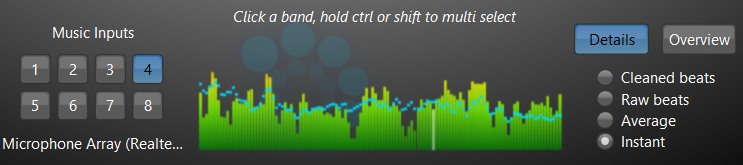
Select one of the 120 music frequency bands for a very precise music synchronization. In fact, Lightjams does a high quality 1024 band analysis and crunches the numbers to show you a handy 120 frequency band version.
General Mood
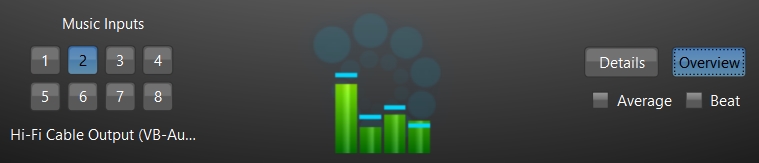
When you care about the music mood only, the overview offers you four frequency bands: overall, low, mid and hi. In addition, the blue lines show you the average power which is perfect to follow the musical mood.
Beat Detection
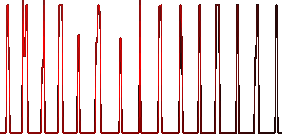
One-click beat detection! Just check the "beat" box and Lightjams will automatically detect beat amplitude for the selected frequency. It is not simply on and off but a full percentage value so you can know about the real beat power.
8 Music Inputs
Music from up to 8 inputs/sound cards can be fully analyzed in real time. It allows you to place sound recorders at different physical locations and trigger effects based on where it comes from.
ASIO
ASIO support for very low latency music input. For the real pros out there!