Get It!

Free trial.

Wii to DMX 512

Add Real Human Movements to Your Show

Use wii devices for experimentation, adding organic feel or just for fun. Let's see how we can control two moving heads with a wii remote.

In the next video we create a wave effect on a LED panel, triggered by the wiimote movement and use the nunchuk to change the color.

Embrace User Moves

The wii remotes allow you to add real human generated movement to your show. What can be more natural and true?

High Fidelity Movements

Lightjams gets the wii device states up to 80 times per second. With the help of realtime correction algorithms, this assures really smooth and organic inputs to your show.

Powered by Bluetooth

Wii devices talks to Lightjams through Bluetooth. As this is a standard component of today's computers, you don't need any extra hardware. Another good thing is that Bluetooth offers you well over 60 meters (200 feet) of wireless freedom in open space.

Multiply the Pleasure

With up to four wii remotes at the same time, this is a great addition for a great jam.
Walkthrough

1. Global Configuration

Access the Wii configuration by going to View/Configuration.

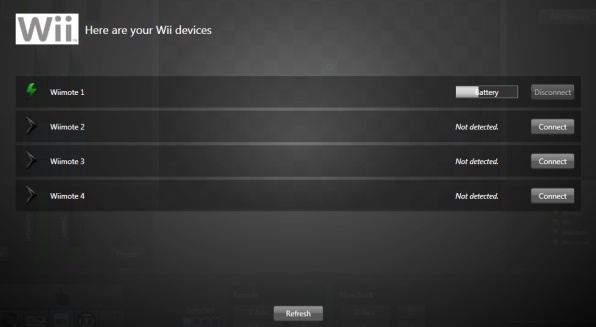
Lightjams automatically detects connected Wiimotes at startup. Wiimotes may have been connected via the system bluetooth manager or previously in Lightjams.

For connected Wiimotes, you can see the battery level and the disconnect button. Use the disconnect button when you no longer want to use a Wiimote and then turn it off by pressing the power button.

The refresh button checks whether all connected Wiimotes are still working properly.

See detected wiimote

2. Connect

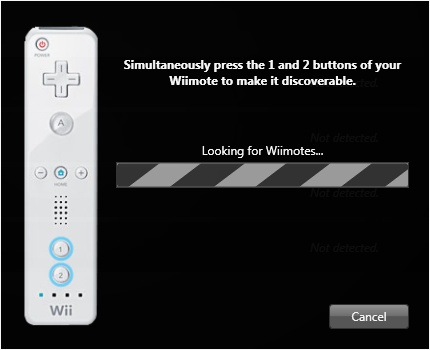
Press and hold the 1 and 2 buttons of your Wiimote and click the "connect" button. Wait a couple of seconds and hooray!

If it doesn't work, the principal problem is when your system is looking for bluetooth driver update. You can retry but if it still doesn't work, you can click the toolbar icon and cancel the driver update.

Notes for Mac users with Parallels: See this guide to enable bluetooth in Windows.

The window when connecting a new wiimote

3. Link to any slider

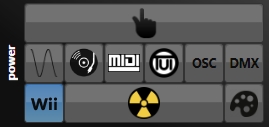
Select any slider and click on the Wii icon. Then you'll be able to play with all Wii settings.

Select the wii input mode

4. Play

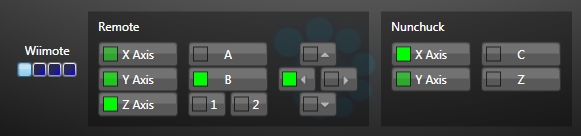
Wiimote: The first you do is to select your Wiimote. Here you see the four buttons corresponding to your four Wiimotes.

Remote: This are the controls you find on the remote. Just click any buttons to use its value.

Nunchuck: This are the controls you find on the Nunchuck, when plugged-in.

Easily select the proper wii parameter

Idea box

Fix Wiimotes on a dancer or music performer. Perfect for experimental dance and music shows. Play "target your friends" with moving lights. Let people interact with their friends through lighting. A real crowd pleaser. Record light signatures. Let people leave their marks using Wiimote movements and lighting. Give the lighting crew some Wiimotes and see what happen. Showcase new lighting products. Want to really feel the new Martin Mac 101 speed? Link it to a Wiimote.

What's next? Try it for free!

©2013 Lightjams - The DMX Lighting Controller for Live Performances. Proudly made in Montreal, Canada.